Build the Pyramid Controls Guide
PC and mobile inputs for carrying, stacking, chatting, and surviving the pyramid.
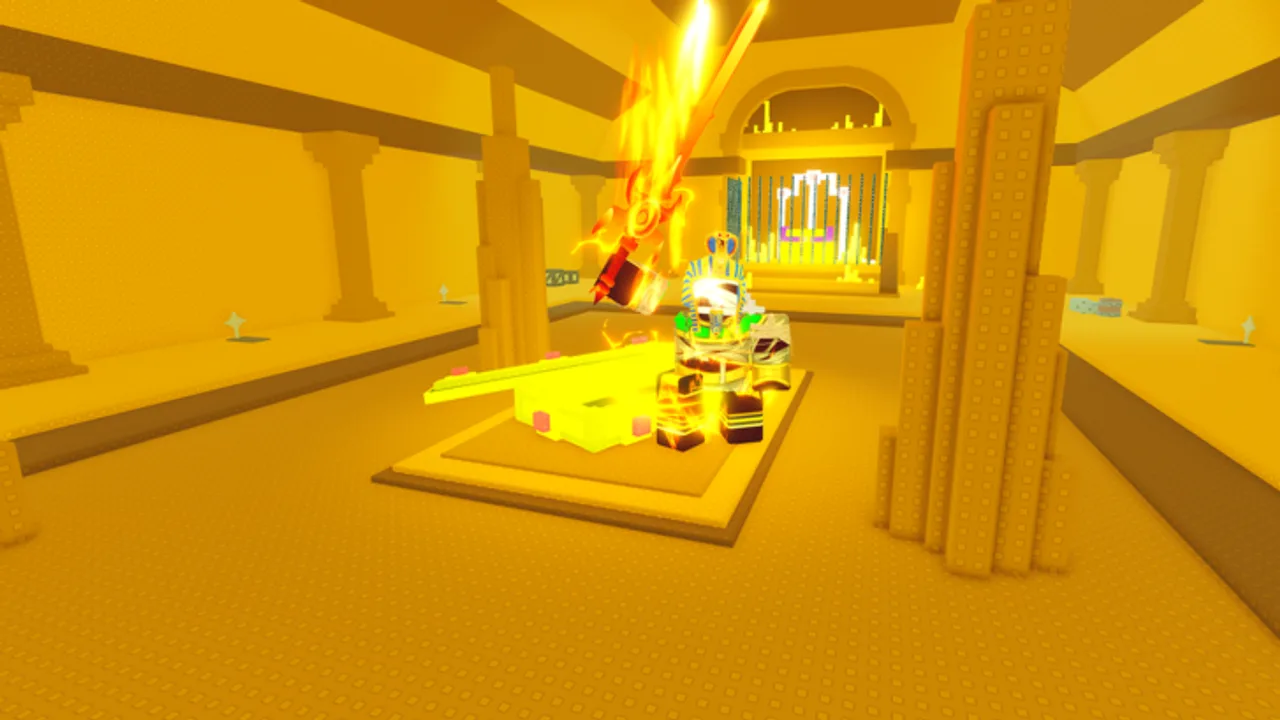
Why controls matter in a build co-op
Build The Pyramid Together! looks simple — walk, pick up bricks, stack, fight a boss — but bad camera habits and missed interact prompts waste minutes in a 25-player server. This guide covers default Roblox-style inputs, device tips, and co-op callout habits that support Getting Started and Build Faster.
The place listing shows voice chat not supported and camera not supported as platform features, so expect standard character camera and text chat rather than experience-specific voice tooling.
PC defaults
| Action | Typical input |
|---|---|
| Move | WASD |
| Jump | Space |
| Camera | Mouse move / right-mouse drag |
| Zoom | Mouse wheel |
| Interact / pick up / place | E or click prompt (on-screen) |
| Chat | / or the chat window |
| Shift lock (if enabled) | Shift |
| Emotes / backpack | Roblox default hotbar keys |
Exact interact binding can vary with your Roblox settings. If prompts do not fire, click the on-screen button, walk closer, and ensure another player is not occupying the same pickup volume.
PC quality tips
- Raise camera slightly while carrying so cliff edges on the pyramid read clearly.
- Lower graphics only if frame drops cause mis-clicks during placement.
- Use Shift lock carefully on narrow ledges; it helps tracking but hurts some players’ depth perception.
- Bind push-to-talk is irrelevant here — type short callouts instead.
Mobile and tablet
| Action | Typical input |
|---|---|
| Move | Left virtual joystick |
| Camera | Drag on the right side of the screen |
| Jump | Jump button |
| Interact | On-screen prompt button when available |
| Chat | Chat icon → type → send |
Mobile quality tips
- Play in landscape for a wider view of brick routes.
- Increase touch sensitivity if camera drags feel heavy mid-carry.
- Watch for fat-finger jumps near ledges; jump only to clear gaps.
- Pre-write common phrases in a notes app if typing callouts is slow: “carrier left,” “slab up,” “fighters door.”
Thumb placement that covers the interact prompt is a common reason mobile players “cannot pick up bricks.” Move your camera hand higher and keep the prompt visible.
Carrying and placing without drops
- Walk into the brick until the prompt appears.
- Confirm your hands / carry counter updates before leaving the pile.
- Avoid jumping at the exact pickup frame — it cancels some interactions.
- At the wall, face the stack target, wait for the place prompt, then commit.
- If the place fails, step back one stud, re-center, and try again instead of spamming.
Full loads matter. Partial trips are the enemy of Build Faster. After you join the TestGrounds32 group for +3 capacity, re-test how the counter looks on your HUD so you know when you are full.
Camera survival for pyramid geometry
Cursed pyramid builds create ramps, gaps, and narrow ridges. Players fall less when they:
- Zoom out one or two notches while ascending
- Keep the horizon visible rather than staring at their feet
- Stop sprinting into unseen drops during slab escorts
- Re-orient before the Pharaoh arena so fight telegraphs are readable
If you are dizzy on mobile, lower camera speed in Roblox settings and take wider paths even if they are a few seconds longer.
Chat is a control surface
Because voice is unsupported, chat is part of the control scheme:
- Keep chat open on a second monitor on PC if you lead
- Use short imperative lines, not essays
- Repeat slab and boss calls once — spam hides important lines
- Mute disruptive users in the Roblox menu rather than arguing mid-carry
Suggested calls tie into Return the Slab and Beat Pharaoh Boss. Party culture tips sit on Players.
Accessibility and comfort
- Ages 16+ with mild fear / violence — expect tense audio or visuals near the curse and boss. Lower master volume if needed.
- Colorblind players should rely on silhouette and prompts, not assumed HUD hues.
- Seated mobile play reduces mis-taps compared with walking around your house while carrying virtual bricks.
Controllers
Roblox controller support follows your device defaults: left stick move, right stick camera, face buttons for jump / interact where mapped. If interact is awkward, prefer tapping on-screen prompts. Controllers are fine for carrying routes; precise stacking may still feel better on mouse or touch.
Troubleshooting input problems
Cannot pick up: Move closer, wait for prompt, rejoin if the session desynced.
Cannot place: Aim at a valid surface on the active face; avoid placing into mid-air gaps.
Camera stuck: Pinch / wheel zoom, or toggle first-person / third-person with the Roblox camera mode.
Chat not sending: Check privacy settings and flood cooldown.
Carry bonus missing: Confirm TestGrounds32 group join, then rejoin the place (Codes explains the bonus).
Practice routine (five minutes)
- Spawn and circle the brick pile while only adjusting camera.
- Complete three full carry → place cycles without jumping.
- Type one callout successfully mid-route.
- Climb a short ridge and descend without falling.
- Open chat and acknowledge a teammate’s plan.
Then continue into real construction. Controls competence is what lets role theory on the Tier List actually work.
Related pages
- Guides Hub — all walkthroughs
- Updates — if a patch changes HUD prompts
- Official Links — re-open the place quickly
- Scripts — not required for controls; listed only for risk awareness
Learn these inputs once and every later guide — slab, boss, faster builds — becomes easier to execute under pressure.
Frequently Asked Questions
Quick answers to the most common questions.
What key picks up bricks on PC?
Use the on-screen interact prompt, commonly E or click. Walk close enough for the prompt to appear before leaving the pile.
Does the game support voice chat?
The place listing shows voice chat not supported. Use text callouts for slab and boss coordination.
Any special mobile tips?
Play landscape, keep the interact prompt uncovered by your thumb, and pre-write short callout phrases if typing is slow.
Why do I keep falling off the pyramid?
Zoom out slightly, stop jump-spamming on ridges, and re-orient the camera before sprinting down ramps.
Do I need a controller?
No. Keyboard-mouse and touch both work. Controllers are optional and may feel weaker for precise stacking.
My carry count seems low. Is that controls?
Usually not. Join the TestGrounds32 group for +3 capacity and rejoin the game, then re-check your carry counter.